Managing your Servers
After finalizing your panel account setup, access the panel: here, and you will greet with this ui:
The Dashboard
Section titled “The Dashboard”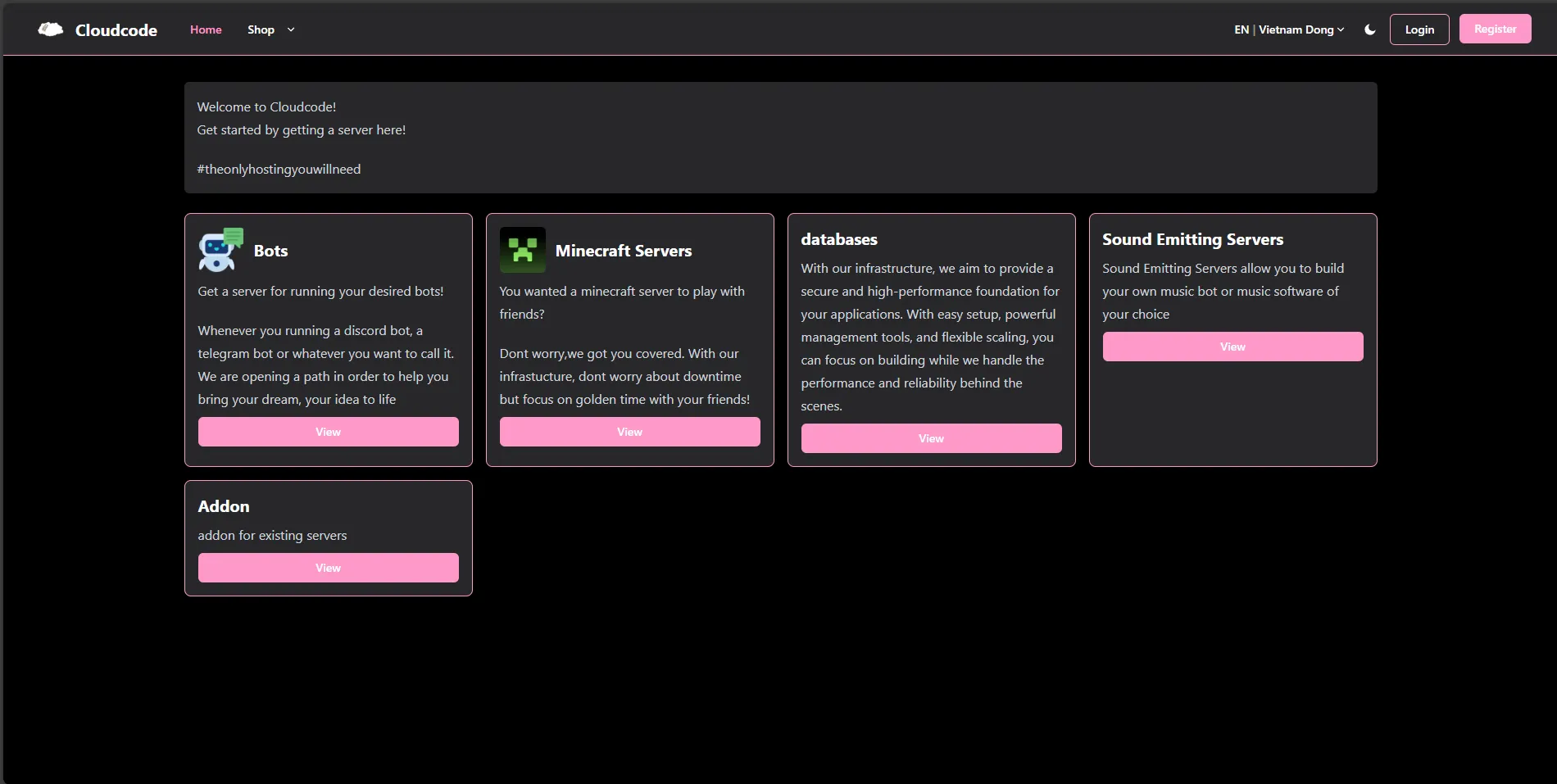
On your left, its your navigation bar. Hover on one of the icon and a small tooltip will pop up and tell you where to go

Now look at these:
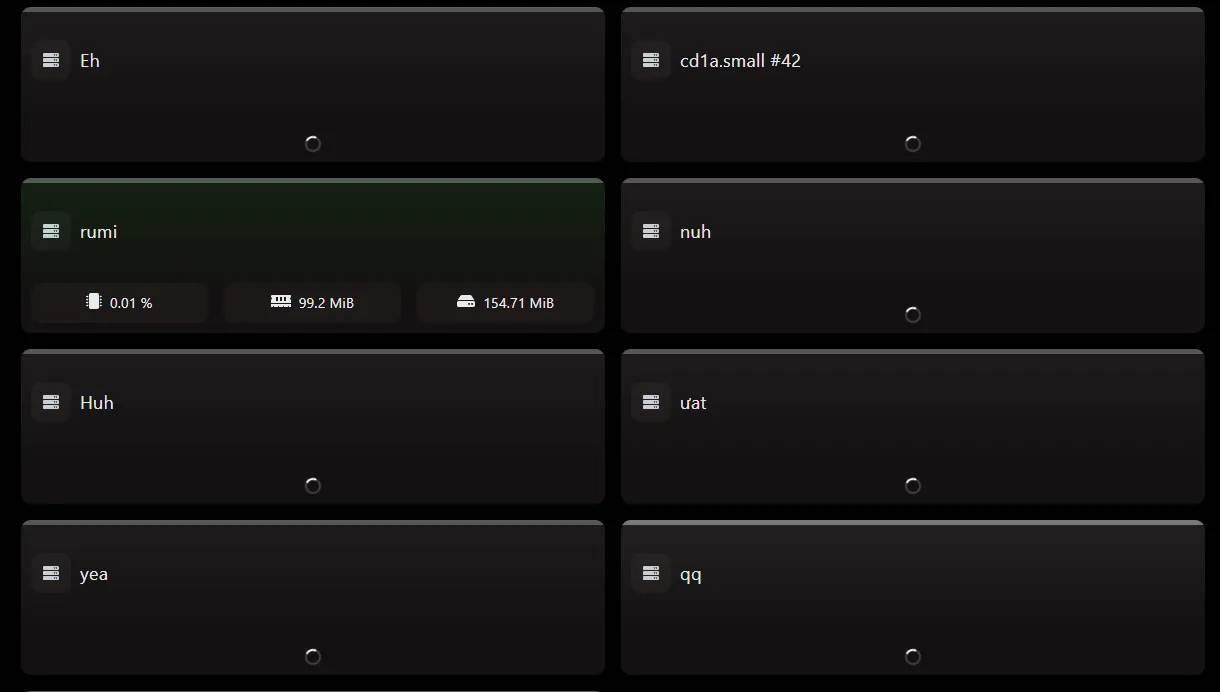
This is how your server will appear on the management dashboard, click on one and it will lead you to the console
Server Manangement page
Section titled “Server Manangement page”The Console
Section titled “The Console”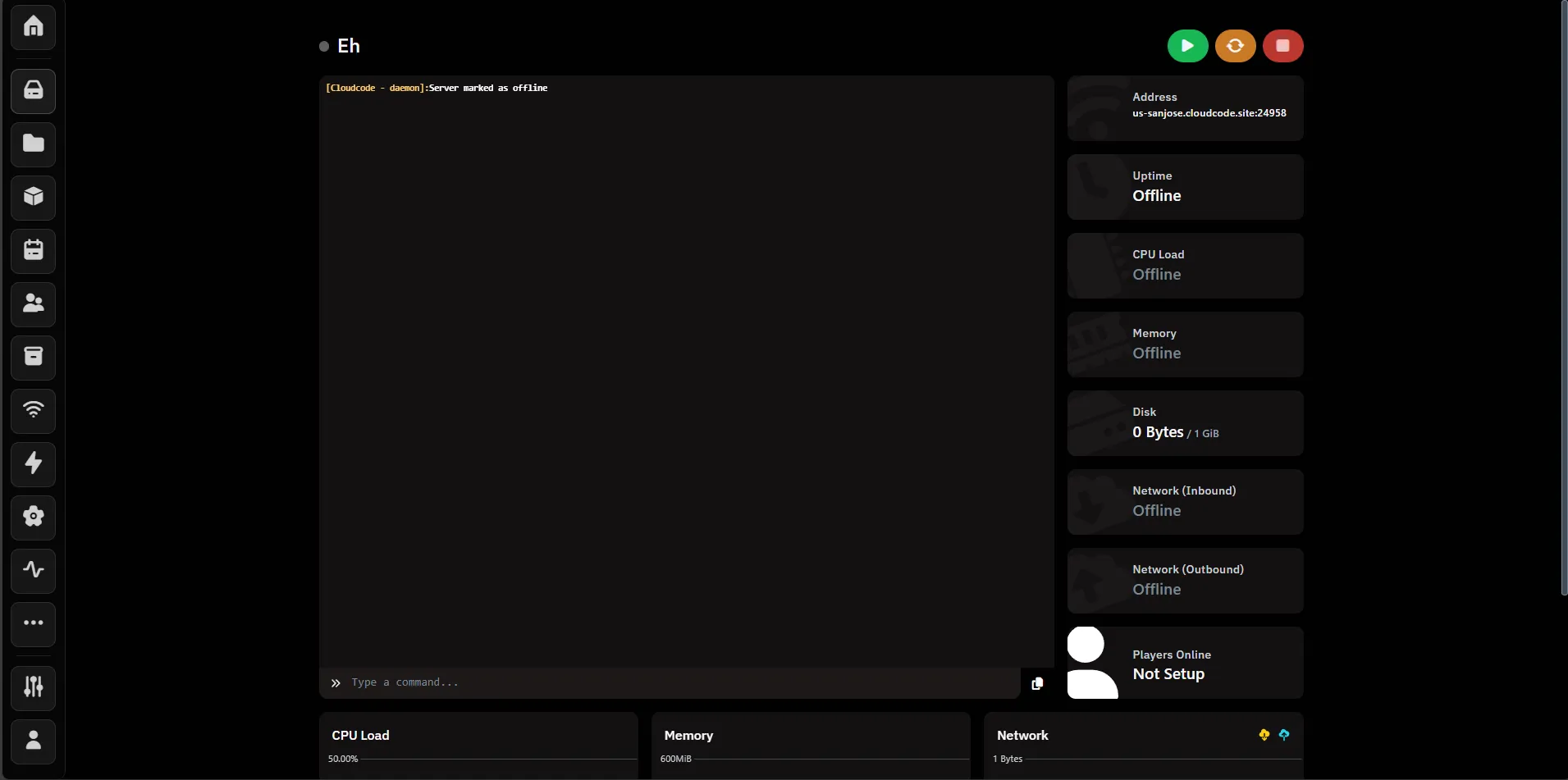
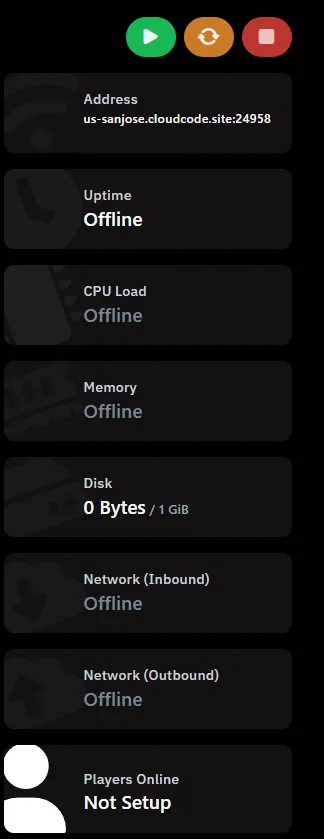
Power Management & Stats
Section titled “Power Management & Stats”On your right side, there your power management and server stats
Console logs and commands
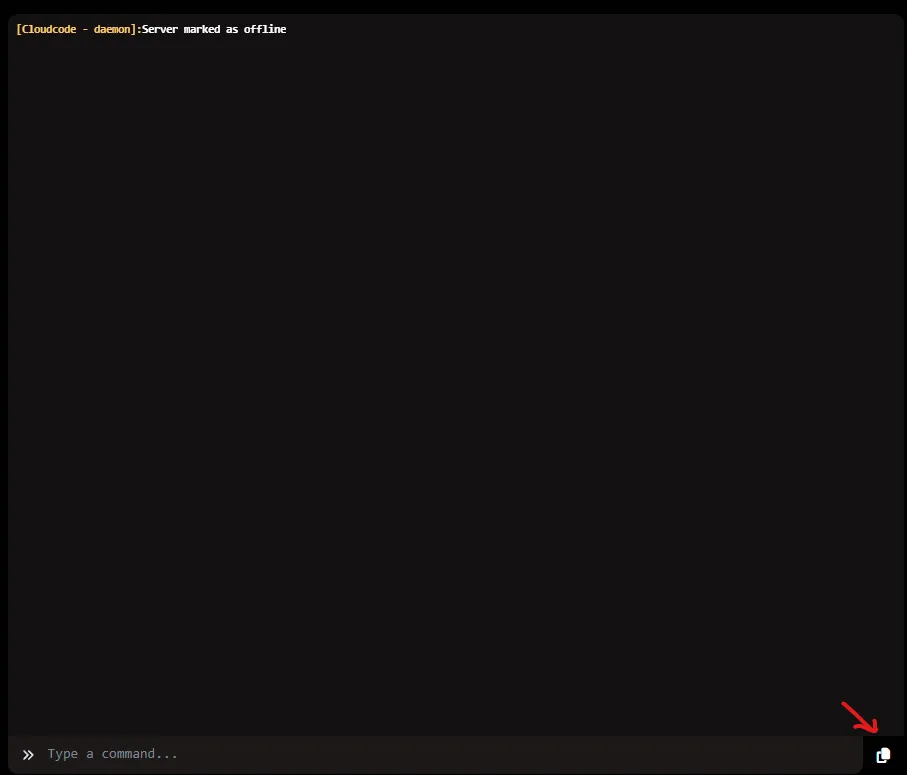
Section titled “Console logs and commands”Now on your left side, there your Console which include recent event (logs) and a bar to run command. also a small button to copy the log and send to us when you need help.
The File manager
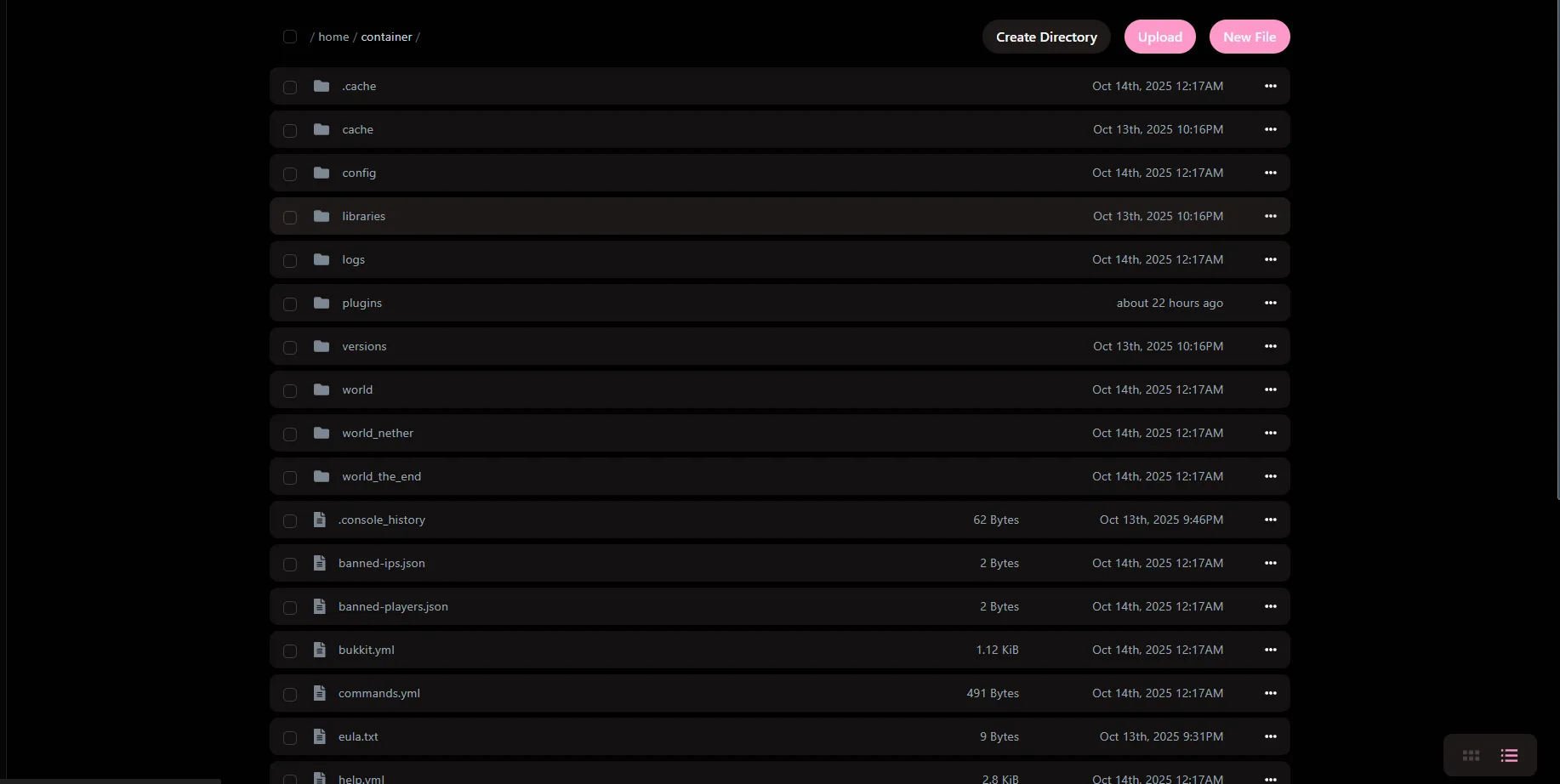
Section titled “The File manager”Next part, the file manager.
This is where you can edit your config and files
Editing an file
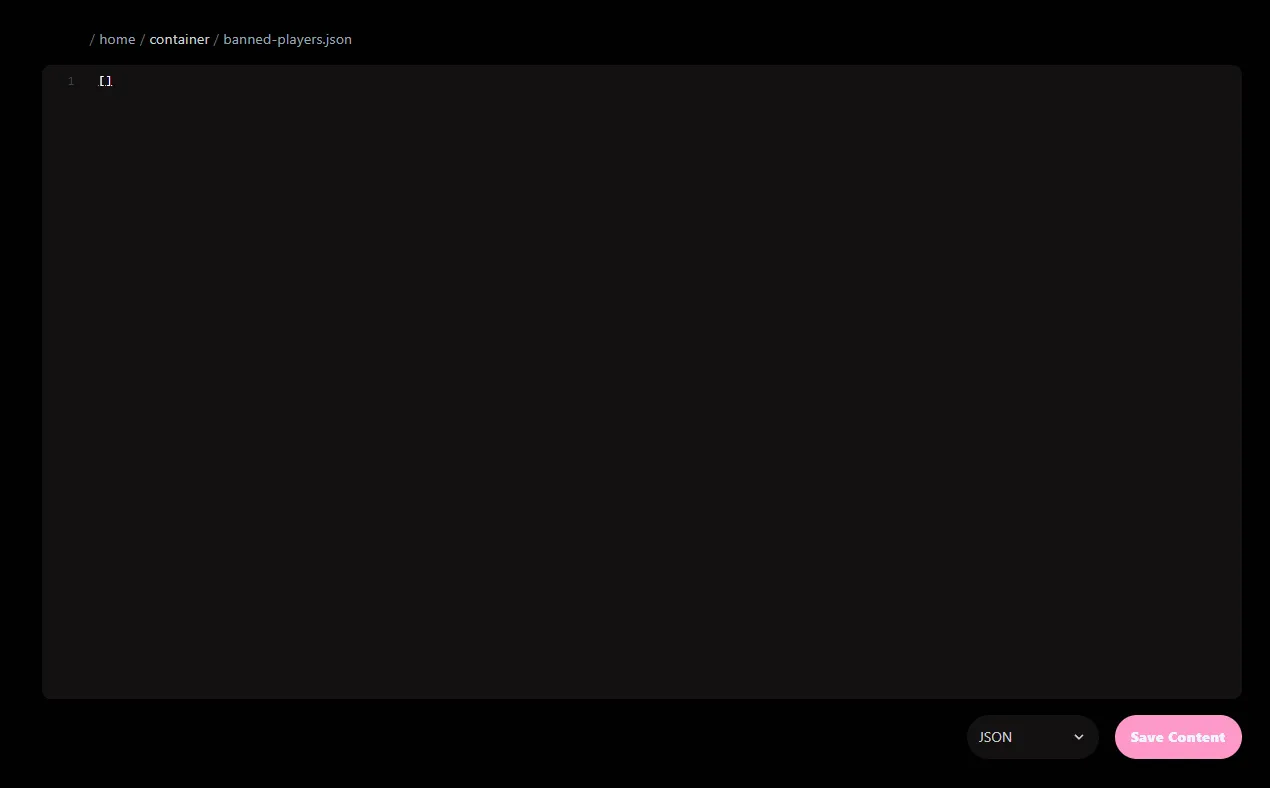
Section titled “Editing an file”This gonna be the notepad on web you stuck with while we trying to improve it
The Settings
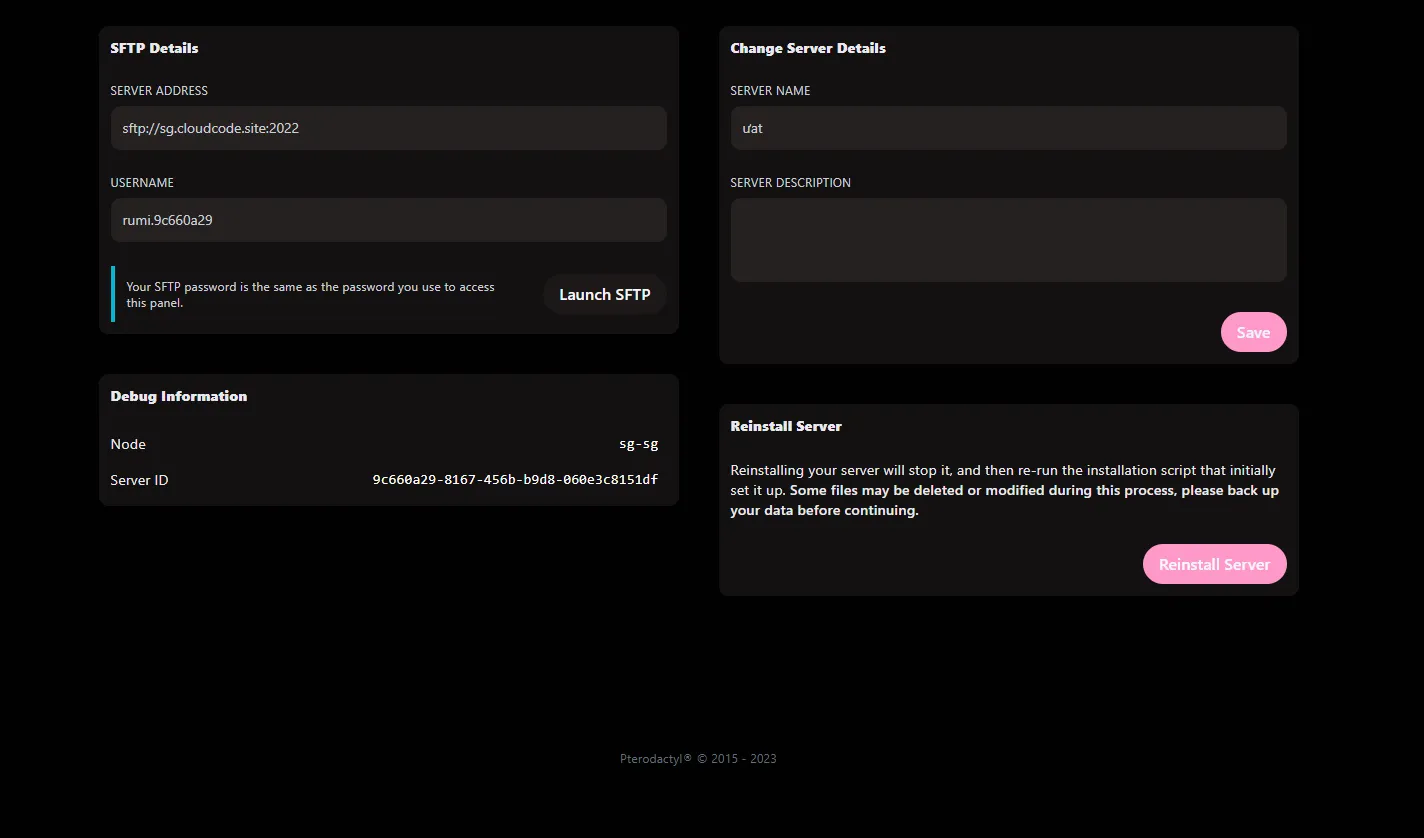
Section titled “The Settings”This is where you can retrive your sftp creditentials, change the server name or even reinstall it
What about the rest?
Section titled “What about the rest?”Dont make your mind complicated, you will find it out someday. we’re here to introduce you to the basics